
The Closima Operator's Field Manual
31 rules for setting up Closima and running every file from the signed contract: setup, deadlines, your day, agents, getting paid, and what waits for your OK. Two pages, free to download and share.
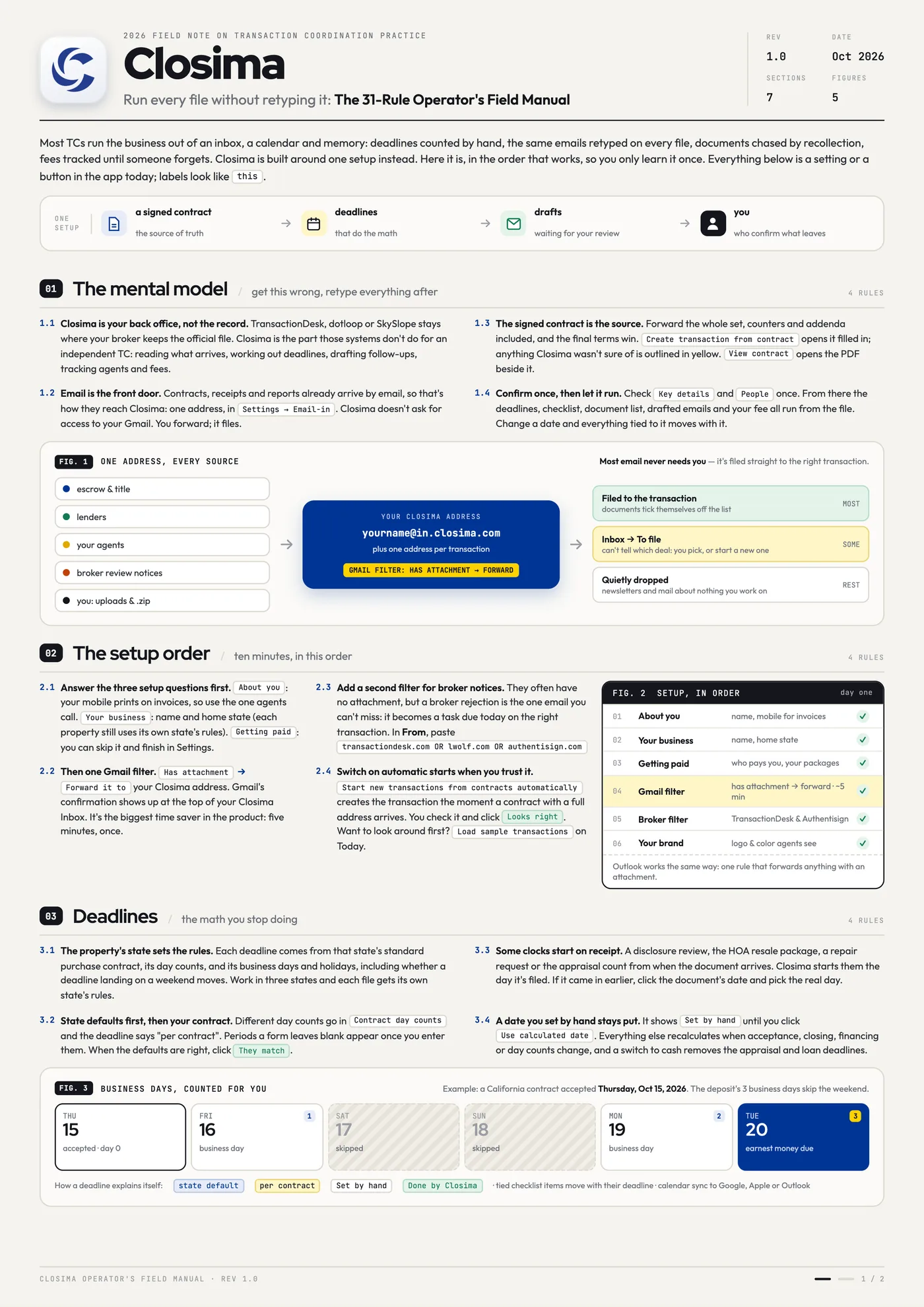
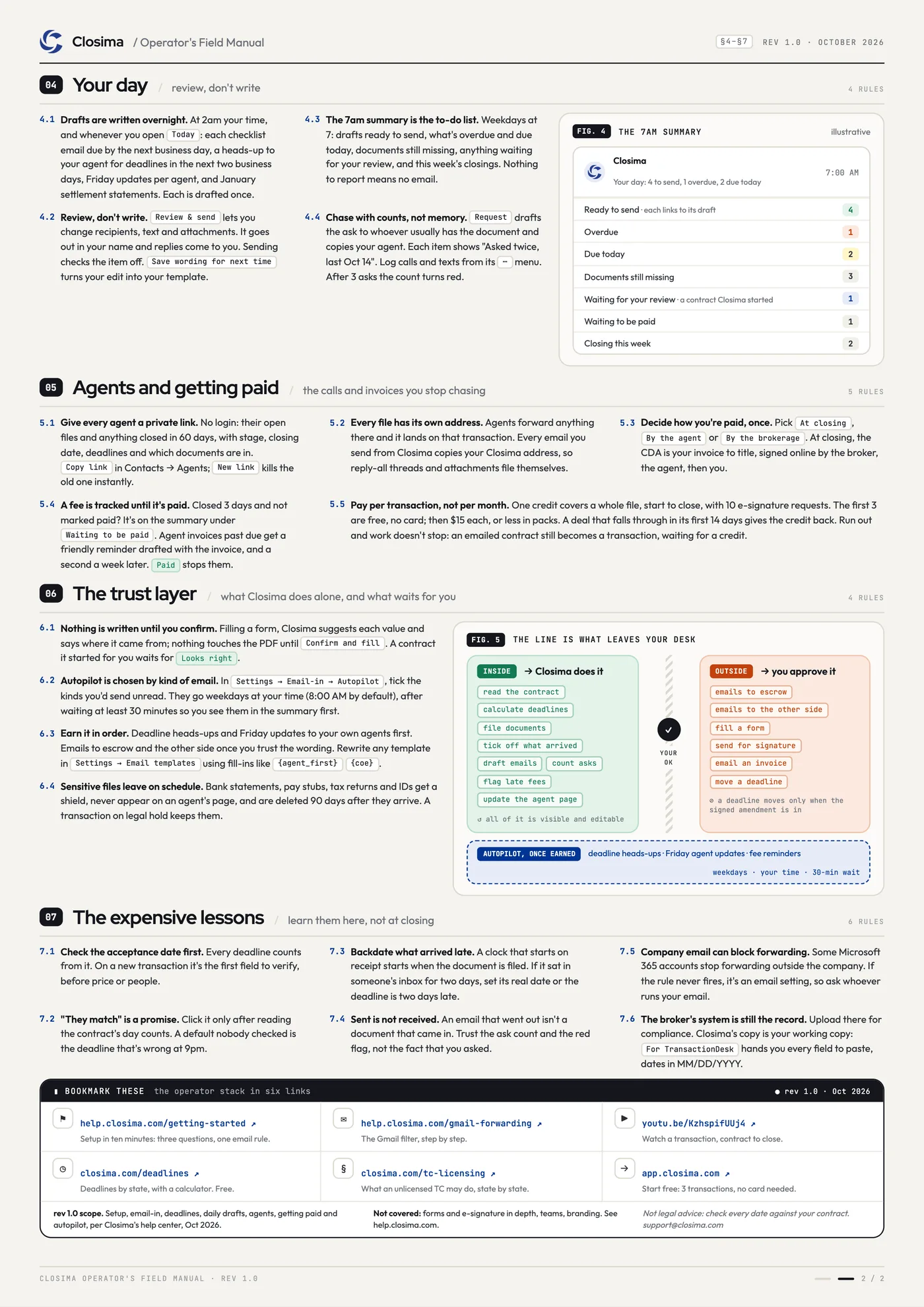
Tap a page to open it in a new tab, where you can zoom in and out. Every rule is also below as text.
Most TCs run the business out of an inbox, a calendar and memory: deadlines counted by hand, the same emails retyped on every file, documents chased by recollection, fees tracked until someone forgets. Closima is built around one setup instead. Here it is, in the order that works, so you only learn it once. Everything below is a setting or a button in the app today; labels look like this.
01The mental model
get this wrong, retype everything after
- 1.1Closima is your back office, not the record. TransactionDesk, dotloop or SkySlope stays where your broker keeps the official file. Closima is the part those systems don't do for an independent TC: reading what arrives, working out deadlines, drafting follow-ups, tracking agents and fees.
- 1.2Email is the front door. Contracts, receipts and reports already arrive by email, so that's how they reach Closima: one address, in
Settings → Email-in. Closima doesn't ask for access to your Gmail. You forward; it files. - 1.3The signed contract is the source. Forward the whole set, counters and addenda included, and the final terms win.
Create transaction from contractopens it filled in; anything Closima wasn't sure of is outlined in yellow.View contractopens the PDF beside it. - 1.4Confirm once, then let it run. Check
Key detailsandPeopleonce. From there the deadlines, checklist, document list, drafted emails and your fee all run from the file. Change a date and everything tied to it moves with it.
02The setup order
ten minutes, in this order
- 2.1Answer the three setup questions first.
About you: your mobile prints on invoices, so use the one agents call.Your business: name and home state (each property still uses its own state's rules).Getting paid: you can skip it and finish in Settings. - 2.2Then one Gmail filter.
Has attachment→Forward it toyour Closima address. Gmail's confirmation shows up at the top of your Closima Inbox. It's the biggest time saver in the product: five minutes, once. - 2.3Add a second filter for broker notices. They often have no attachment, but a broker rejection is the one email you can't miss: it becomes a task due today on the right transaction. In From, paste
transactiondesk.com OR lwolf.com OR authentisign.com - 2.4Switch on automatic starts when you trust it.
Start new transactions from contracts automaticallycreates the transaction the moment a contract with a full address arrives. You check it and clickLooks right. Want to look around first?Load sample transactionson Today.
03Deadlines
the math you stop doing
- 3.1The property's state sets the rules. Each deadline comes from that state's standard purchase contract, its day counts, and its business days and holidays, including whether a deadline landing on a weekend moves. Work in three states and each file gets its own state's rules.
- 3.2State defaults first, then your contract. Different day counts go in
Contract day countsand the deadline says "per contract". Periods a form leaves blank appear once you enter them. When the defaults are right, clickThey match. - 3.3Some clocks start on receipt. A disclosure review, the HOA resale package, a repair request or the appraisal count from when the document arrives. Closima starts them the day it's filed. If it came in earlier, click the document's date and pick the real day.
- 3.4A date you set by hand stays put. It shows
Set by handuntil you clickUse calculated date. Everything else recalculates when acceptance, closing, financing or day counts change, and a switch to cash removes the appraisal and loan deadlines.
04Your day
review, don't write
- 4.1Drafts are written overnight. At 2am your time, and whenever you open
Today: each checklist email due by the next business day, a heads-up to your agent for deadlines in the next two business days, Friday updates per agent, and January settlement statements. Each is drafted once. - 4.2Review, don't write.
Review & sendlets you change recipients, text and attachments. It goes out in your name and replies come to you. Sending checks the item off.Save wording for next timeturns your edit into your template. - 4.3The 7am summary is the to-do list. Weekdays at 7: drafts ready to send, what's overdue and due today, documents still missing, anything waiting for your review, and this week's closings. Nothing to report means no email.
- 4.4Chase with counts, not memory.
Requestdrafts the ask to whoever usually has the document and copies your agent. Each item shows "Asked twice, last Oct 14". Log calls and texts from its⋯menu. After 3 asks the count turns red.
05Agents and getting paid
the calls and invoices you stop chasing
- 5.1Give every agent a private link. No login: their open files and anything closed in 60 days, with stage, closing date, deadlines and which documents are in.
Copy linkin Contacts → Agents;New linkkills the old one instantly. - 5.2Every file has its own address. Agents forward anything there and it lands on that transaction. Every email you send from Closima copies your Closima address, so reply-all threads and attachments file themselves.
- 5.3Decide how you're paid, once. Pick
At closing,By the agentorBy the brokerage. At closing, the CDA is your invoice to title, signed online by the broker, the agent, then you. - 5.4A fee is tracked until it's paid. Closed 3 days and not marked paid? It's on the summary under
Waiting to be paid. Agent invoices past due get a friendly reminder drafted with the invoice, and a second a week later.Paidstops them. - 5.5Pay per transaction, not per month. One credit covers a whole file, start to close, with 10 e-signature requests. The first 3 are free, no card; then $15 each, or less in packs. A deal that falls through in its first 14 days gives the credit back. Run out and work doesn't stop: an emailed contract still becomes a transaction, waiting for a credit.
06The trust layer
what Closima does alone, and what waits for you
- 6.1Nothing is written until you confirm. Filling a form, Closima suggests each value and says where it came from; nothing touches the PDF until
Confirm and fill. A contract it started for you waits forLooks right. - 6.2Autopilot is chosen by kind of email. In
Settings → Email-in → Autopilot, tick the kinds you'd send unread. They go weekdays at your time (8:00 AM by default), after waiting at least 30 minutes so you see them in the summary first. - 6.3Earn it in order. Deadline heads-ups and Friday updates to your own agents first. Emails to escrow and the other side once you trust the wording. Rewrite any template in
Settings → Email templatesusing fill-ins like{agent_first}{coe}. - 6.4Sensitive files leave on schedule. Bank statements, pay stubs, tax returns and IDs get a shield, never appear on an agent's page, and are deleted 90 days after they arrive. A transaction on legal hold keeps them.
07The expensive lessons
learn them here, not at closing
- 7.1Check the acceptance date first. Every deadline counts from it. On a new transaction it's the first field to verify, before price or people.
- 7.2"They match" is a promise. Click it only after reading the contract's day counts. A default nobody checked is the deadline that's wrong at 9pm.
- 7.3Backdate what arrived late. A clock that starts on receipt starts when the document is filed. If it sat in someone's inbox for two days, set its real date or the deadline is two days late.
- 7.4Sent is not received. An email that went out isn't a document that came in. Trust the ask count and the red flag, not the fact that you asked.
- 7.5Company email can block forwarding. Some Microsoft 365 accounts stop forwarding outside the company. If the rule never fires, it's an email setting, so ask whoever runs your email.
- 7.6The broker's system is still the record. Upload there for compliance. Closima's copy is your working copy:
For TransactionDeskhands you every field to paste, dates in MM/DD/YYYY.
Bookmark these
- help.closima.com/getting-started
Setup in ten minutes: three questions, one email rule. - help.closima.com/gmail-forwarding
The Gmail filter, step by step. - youtu.be/KzhspifUUj4
Watch a transaction, contract to close. - closima.com/deadlines
Deadlines by state, with a calculator. Free. - closima.com/tc-licensing
What an unlicensed TC may do, state by state. - app.closima.com
Start free: 3 transactions, no card needed.
Try it on your next file
The first 3 transactions are free, no card needed. Forward a signed contract and watch the deadlines fill in.
Start freeNot legal advice: check every date against your contract. Questions: [email protected]